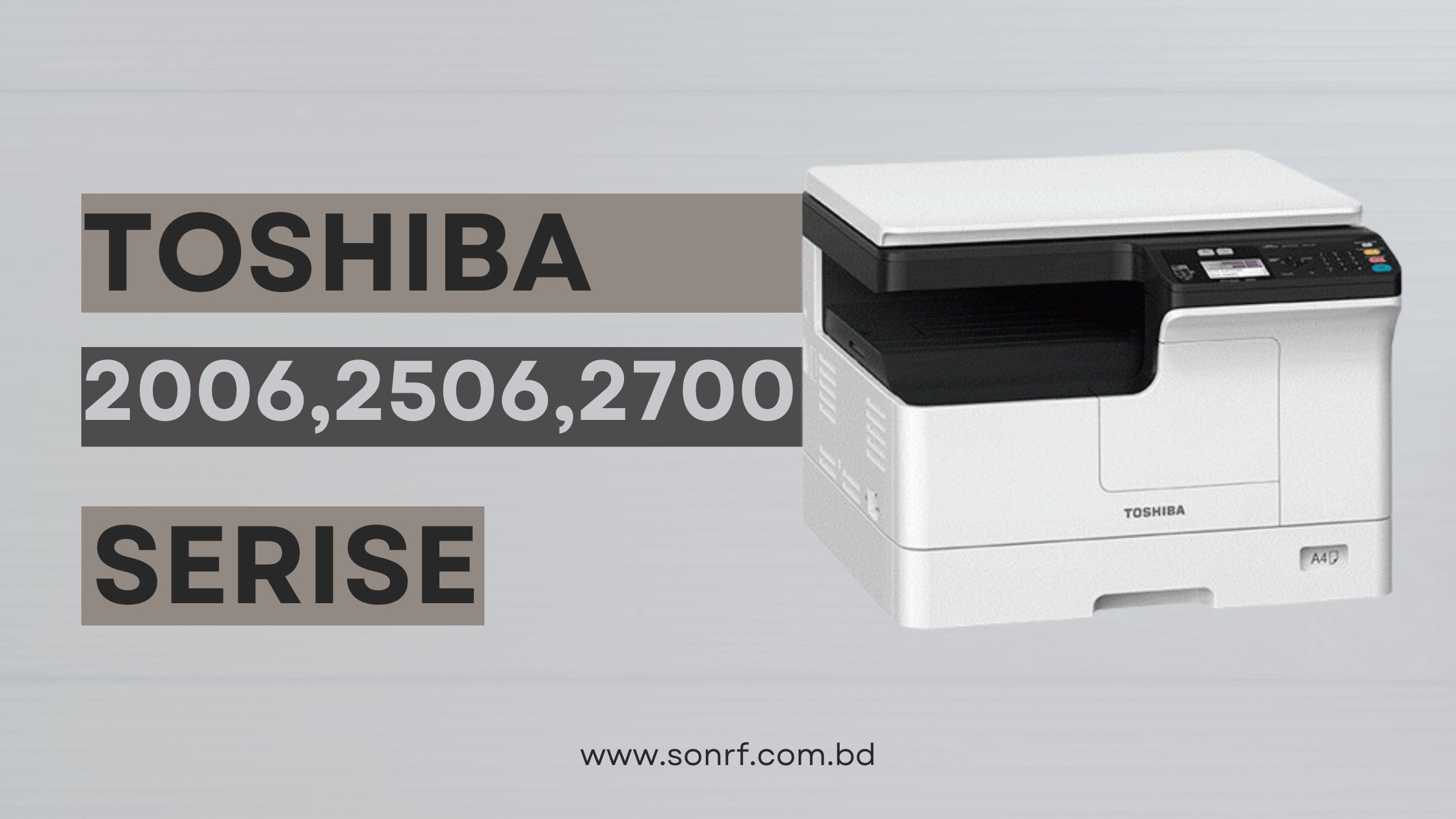
Toshiba e-Studio 2006, 2506, 2700, Series

Download Toshiba e-Studio 2006/2506/2700 Driver for Free


Introduction: Is Your Trusted Toshiba e-Studio Underperforming?

Download Toshiba e-Studio 2006/2506/2700 Driver MFP has likely been a workhorse in your office for years. However, if you’re experiencing issues like failed print jobs, unresponsive scanning, or general connectivity problems, the culprit is often outdated, missing, or incompatible drivers. This is especially common when upgrading to newer operating systems like Windows 10 or Windows 11.

Don’t let driver headaches slow you down! This guide will provide you with the free download links for the essential printer and scanner drivers for your Toshiba e-Studio 2006, 2506, or 2700, ensuring it gets back to full functionality. Follow our simple steps to get your reliable MFP working perfectly again.

Why Correct Drivers are Non-Negotiable for Your MFP

Drivers are fundamental software components that enable your computer (Windows OS) to communicate with your hardware (Toshiba e-Studio printer/scanner). Without the proper drivers, your computer can’t “talk” to the MFP effectively, leading to:

  • “Printer Offline” messages.
  • Print jobs stuck in the queue.
  • Scanner not detected in applications.
  • Inability to access advanced features.
  • Error codes during operation.

Installing the correct, up-to-date drivers is the first and most critical step to resolving these issues and ensuring your MFP performs as intended.

Understanding Your Toshiba e-Studio 2006, 2506, and 2700 Series

The Toshiba e-Studio 2006, 2506, and 2700 models are part of a popular series of monochrome (black and white) multi-function printers designed for efficient document management in various office environments. While they might be older models, they are known for their durability and robust feature sets, which typically include:

  • High-Volume Printing & Copying: Reliable output for everyday office tasks.
  • Color Scanning: Capabilities to digitize documents in color, saving them to your computer or network.
  • Network Connectivity: Allowing multiple users to access printing and scanning functions.
  • User-Friendly Control Panel: For easy operation.

To fully harness these capabilities on modern Windows systems, you need the right drivers.

Driver Compatibility: Windows 11, 10, 8.1, 8, and 7

Despite being around for some time, Toshiba has generally provided good driver support for the e-Studio 2006, 2506, and 2700 models across a wide range of Windows operating systems. You can typically find drivers compatible with:

  • Windows 11 (64-bit)
  • Windows 10 (32-bit & 64-bit)
  • Windows 8.1 (32-bit & 64-bit)
  • Windows 8 (32-bit & 64-bit)
  • Windows 7 (32-bit & 64-bit)
  • Various Windows Server editions

It’s crucial to download the driver that matches your specific Windows version and architecture (32-bit or 64-bit).

Where to Find Your Free & Official Toshiba Drivers

For the safest and most reliable free driver download for your Toshiba e-Studio 2006, 2506, or 2700, always go directly to the official Toshiba support website. Avoid third-party sites that may offer outdated, unverified, or potentially harmful software.

Here’s how to navigate to the correct download section:

  1. Visit the Official Toshiba Support Portal: Open your web browser and search for “Toshiba [Your Region] support” (e.g., Toshiba America support, Toshiba Europe support) or directly “Toshiba e-Studio 2006 driver,” “Toshiba e-Studio 2506 driver,” or “Toshiba e-Studio 2700 driver.” Look for official domains like business.toshiba.com or toshibatec.com.
  2. Navigate to Drivers & Downloads: On the Toshiba website, locate the “Support,” “Downloads,” or “Drivers & Manuals” section.
  3. Search for Your Model: Use the search bar provided and enter your specific MFP model (e.g., “e-Studio 2006,” “e-Studio 2506,” or “e-Studio 2700”).
  4. Select Your Operating System: This is a vital step. Choose your precise Windows version and architecture (e.g., “Windows 10 64-bit” or “Windows 11 64-bit”). If you’re unsure, you can easily check your Windows version.
    • (Optional: Link to an internal blog post about checking Windows version and bit-type if available on your site.)
  5. Identify and Download Necessary Drivers: Toshiba typically provides separate driver packages for different functionalities. Download all that you need:
    • Printer Driver (PCL6, PS, or Universal Printer Driver): This is essential for printing.
    • Scanner Driver (TWAIN/WIA): Required for using the scanning functions to your PC.
    • Network Driver / Utilities: If you plan to use the MFP over a network (Ethernet or Wi-Fi), these are crucial.
    • Fax Driver: If your model supports faxing via PC.
    • Client Utilities: Optional software for device management or monitoring.

All these drivers are provided for free from the official Toshiba download portal.

Pre-Installation Checklist: Prepare for a Smooth Setup

Before you begin the driver installation process, these simple steps can help prevent common issues:

  1. Administrator Rights: Ensure you are logged into your Windows 10/11 computer with an administrator account.
  2. Printer ON & Ready: Confirm your Toshiba e-Studio MFP is powered on and in a ready state.
  3. Disconnect USB (if applicable): If your MFP is currently connected via USB, disconnect the USB cable from both your computer and the printer. You will reconnect it when prompted by the installer.
  4. Stable Connection (for network): If connecting via network, ensure the MFP is properly connected to your local network (Ethernet cable plugged in or Wi-Fi connected if your model supports it).
  5. Close Programs: Close any unnecessary applications running in the background.
  6. Temporarily Disable Antivirus (If Necessary): While official drivers are safe, some antivirus software can occasionally interfere with driver installations. If you encounter errors, temporarily disable your antivirus, but remember to re-enable it immediately after the installation is complete.

Step-by-Step Guide: How to Install Toshiba e-Studio 2006/2506/2700 Drivers

Follow these instructions carefully to get your MFP working again:

  1. Locate Downloaded Files: Find the driver file(s) you downloaded (e.g., e-Studio_2506_Printer_Driver.exe) in your Downloads folder or the location you saved them.
  2. Extract Files (if .zip): If the download is a .zip or .rar archive, right-click it and choose “Extract All…” to an easily accessible new folder on your desktop.
  3. Run the Installer: Double-click the main executable file (often named setup.exe or install.exe) to begin the installation wizard.
    • You may be prompted by User Account Control (UAC); click “Yes” to allow.
  4. Follow On-Screen Instructions:
    • Accept License Agreement: Read and accept the terms to continue.
    • Installation Type: Choose “Standard Installation” for most users. “Custom Installation” allows you to select specific components.
    • Select Connection Method:
      • For USB Connection: Choose “USB Connection” or “Local Printer.” The wizard will prompt you precisely when to connect the USB cable. Connect it only when instructed.
      • For Network Connection: Select “Network Connection” or “Standard TCP/IP Port.” The installer may search for your MFP on the network. If it doesn’t find it automatically, you might need to enter the MFP’s IP address manually (find this in the MFP’s network settings menu).
    • Continue clicking “Next” or “Install” as the wizard guides you through the process of copying files and configuring settings.
  5. Complete Installation: Once the installation finishes, click “Finish” or “Close.”
  6. Restart Your Computer (Recommended): A full computer restart is highly recommended after driver installation to ensure all changes are properly applied and integrated with your operating system.
  7. Reconnect USB (if applicable): If you disconnected the USB cable earlier, reconnect it now. Windows should recognize your MFP.

Repeat this process for the scanner driver and any other utility drivers if they were separate downloads.

Troubleshooting Common Driver Installation Issues

If you encounter problems during or after installing the drivers, try these common fixes:

  • “Printer Not Found” / “Scanner Not Connected” Errors:
    • Verify all cables are securely connected (USB or Ethernet).
    • Ensure the MFP is powered on and not showing any error messages on its panel.
    • For network connections, confirm the MFP has a valid IP address and that your PC can ping it.
    • Restart your computer and the MFP.
    • In Windows 10/11, go to Settings > Bluetooth & devices > Printers & scanners. Click your MFP, then “Printer properties,” and check the “Ports” tab for the correct port selection.
  • Installation Fails or Stops Responding:
    • Ensure your antivirus software is completely disabled during installation.
    • Verify you downloaded the correct driver for your exact Windows version and architecture (32-bit vs. 64-bit).
    • Try running the installer in compatibility mode (right-click the installer .exe > Properties > Compatibility tab > select an older Windows version like Windows 7 or 8).
  • Limited Functionality (e.g., printing works, but scanning doesn’t):
    • Confirm that you installed both the printer driver and the separate scanner driver package.
    • Check for any specific scanning utility software that might be required.
  • Driver Already Installed Error / Previous Drivers Causing Conflict:
    • Go to Settings > Bluetooth & devices > Printers & scanners. Remove any existing entries for your Toshiba e-Studio 2006/2506/2700.
    • Open Device Manager (search in Start menu), expand “Printers” and “Imaging Devices,” right-click any Toshiba e-Studio entries, and select “Uninstall device” (check the box “Delete the driver software for this device” if available).
    • Then, restart your computer and attempt the driver installation again from scratch.

Conclusion: Get Back to Seamless Printing and Scanning!

Your Toshiba e-Studio 2006, 2506, or 2700 is a valuable asset, and ensuring it has the correct drivers is key to its performance. By following this detailed guide, you should now have successfully downloaded and installed the free printer and scanner drivers for your MFP on your Windows 10 or Windows 11 system. Enjoy getting your Toshiba MFP back to work, smoothly and efficiently!

To download the driver for the Toshiba e-Studio 2506 Series printer, follow these steps:

  1. Visit Toshiba’s Official Website:
  1. Find Your Printer Model:
  • Use the search function or navigate to the “Printers” section to find your specific model, in this case, the e-Studio 2506.
  1. Select Your Operating System:
  • Choose the operating system you’re using (Windows, macOS, Linux, etc.). This ensures you download the correct driver version.
  1. Download the Driver:
  • Click on the download link for the driver. The site may offer different versions or packages, so make sure to select the one that matches your needs.
  1. Install the Driver:
  • Once downloaded, open the installer file and follow the on-screen instructions to install the driver on your computer.
  1. Restart Your Computer:
  • After installation, it’s often a good idea to restart your computer to ensure the driver is properly integrated.

If you encounter any issues or the Toshiba website doesn’t have the driver available, you might also consider contacting Toshiba customer support for assistance.

Password: www.sonrf.com.bd2006

Here are relevant tags for your blog post titled “Download Toshiba 2006/2506/2700 Driver for Free”
Downlaod Bijoy Bayanno Free

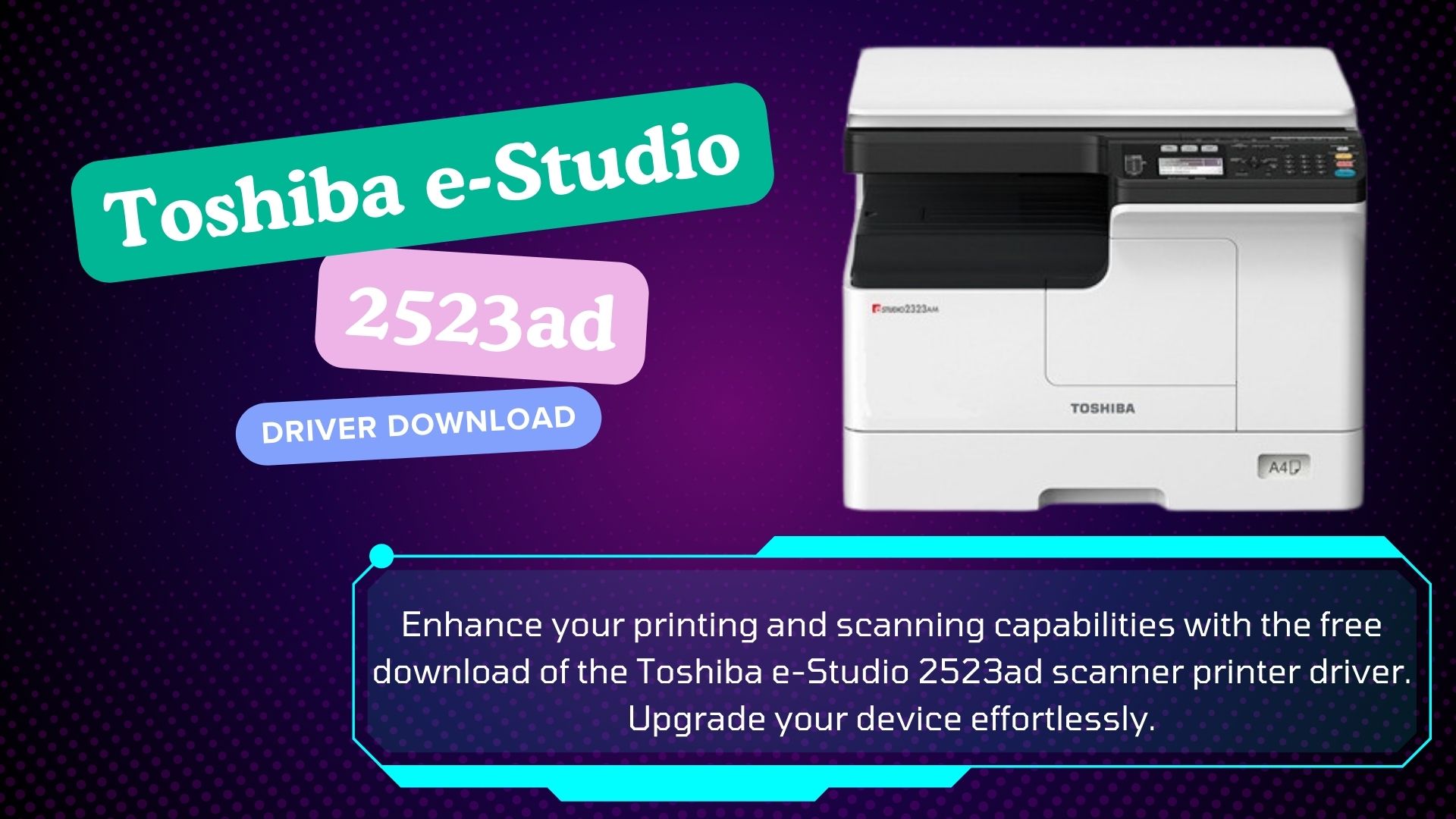
Toshiba e-Studio 2523ad Scanner Printer Driver Download Free

Toshiba e-Studio 2523ad Scanner Printer Driver Download Free


Toshiba e-Studio 2523ad Driver Download

Meta Description: Get the official, free Toshiba e-Studio 2523AD printer and scanner drivers for Windows 10 & Windows 11 in 2025. Resolve common issues with our step-by-step download and installation guide.

Keywords to Target: Toshiba 2523AD driver, e-Studio 2523AD driver download, free 2523AD driver, Toshiba 2523AD printer driver, Toshiba 2523AD scanner driver, 2523AD Windows 10 driver, 2523AD Windows 11 driver, install 2523AD driver, Toshiba MFP driver, 2523AD troubleshooting, official Toshiba drivers 2025.


Unlock Your Toshiba e-Studio 2523AD’s Full Potential in 2025

Your Toshiba e-Studio 2523AD is a reliable workhorse, designed to handle your daily printing, copying, and scanning needs efficiently. However, if you’ve recently upgraded your operating system to Windows 10 or Windows 11, or are encountering issues like failed print jobs, unrecognized scanner functions, or connectivity problems, the solution is often simple: you need the correct and up-to-date drivers.

As of June 2025, ensuring your drivers are current is crucial for seamless operation. This comprehensive guide will show you exactly where to find and how to download official, free Toshiba e-Studio 2523AD printer and scanner drivers, guaranteeing your MFP performs at its best.

Why Are Correct Drivers Essential for Your Toshiba 2523AD?

Drivers are specialized software programs that enable your computer’s operating system (OS) to communicate effectively with hardware devices. For your Toshiba e-Studio 2523AD, drivers act as the crucial link, allowing your Windows 10 or 11 PC to:

  • Send print commands accurately.
  • Receive scanned documents correctly.
  • Utilize advanced features like duplex printing or scanning to USB.
  • Prevent errors, crashes, and performance bottlenecks.

Without the appropriate drivers, your MFP might not function at all, or only offer limited capabilities.

About the Toshiba e-Studio 2523AD Multi-Function Printer

The Toshiba e-Studio 2523AD is a popular monochrome (black and white) multifunction printer (MFP) known for its robust features and reliability in small to medium office environments. It typically offers:

  • Fast Printing & Copying: Efficiently handles high volumes of black and white documents at speeds up to 25 pages per minute (ppm).
  • Color Scanning: Capable of digitizing documents in both black & white and color.
  • Automatic Duplexing: Built-in capability for two-sided printing, saving paper and time.
  • USB Connectivity: Standard for direct computer connection.
  • Network Connectivity (Optional/Model Dependent): Allows for shared use across an office network.

To unlock these powerful features on your Windows PC, installing the right drivers is the first step.

Toshiba 2523AD Driver Compatibility: Windows 10 & Windows 11 (and More)

The Toshiba e-Studio 2523AD is designed with broad operating system compatibility. You can typically find drivers for:

  • Windows 11 (64-bit)
  • Windows 10 (32-bit & 64-bit)
  • Windows 8.1 (32-bit & 64-bit)
  • Windows 8 (32-bit & 64-bit)
  • Windows 7 (32-bit & 64-bit)
  • Various Windows Server editions

For this guide, we’ll focus on the most commonly used systems in 2025: Windows 10 and Windows 11.

Where to Download Official & Free Toshiba e-Studio 2523AD Drivers

The only recommended and safest place to download free Toshiba e-Studio 2523AD drivers is directly from the official Toshiba support website. This ensures you receive authentic, compatible, and the latest versions, free from malware or bundled unwanted software.

Follow these steps to find your drivers:

  1. Navigate to the Official Toshiba Support Portal: Open your web browser and search for “Toshiba [Your Region] support” (e.g., “Toshiba Global support,” “Toshiba Business Solutions support,” or “Toshiba Tec Europe support”). Look for official domains like business.toshiba.com or toshibatec.com.
  2. Locate the “Support” or “Downloads” Section: On the Toshiba website, find the section dedicated to “Support,” “Downloads,” “Drivers & Manuals,” or “Customer Service.”
  3. Search for Your Model: Use the search bar or product categories to find “e-Studio 2523AD.” Be precise with the model number.
  4. Select Your Operating System: This is a crucial step. From the provided dropdown menus, select your specific Windows version and architecture (e.g., “Windows 11 64-bit” or “Windows 10 32-bit”). If you’re unsure whether your Windows is 32-bit or 64-bit, you can check it in your system settings (Search “About your PC” in Windows Start menu).
  5. Identify and Download Required Drivers: You will usually find several driver types. Download all that are relevant to your needs:
    • Printer Driver (PCL6, PS, or Universal Printer Driver): Essential for printing functions.
    • Scanner Driver (TWAIN/WIA): Necessary for using the scanning features.
    • Network Driver / Utilities: If you plan to connect your MFP via Ethernet or Wi-Fi (if supported by your specific model), these drivers are critical for network communication.
    • Client Utilities/Tools: Optional software that might enhance functionality or provide management tools.

These drivers are always provided for free from the official Toshiba support portals.

Pre-Installation Checklist: Get Ready for a Smooth Setup

Before you begin the driver installation, a few quick preparations can prevent common issues:

  1. Administrator Rights: Ensure you are logged into your Windows 10/11 computer with an account that has administrator privileges.
  2. Power On MFP: Make sure your Toshiba e-Studio 2523AD is powered on and in a ready state.
  3. Disconnect USB Cable (if applicable): If your MFP is currently connected to your PC via a USB cable, disconnect it before running the driver installer. You will be prompted to reconnect it later.
  4. Network Connection (for Network Setup): If you’re installing via a network, ensure the MFP is properly connected to your network (via Ethernet cable or Wi-Fi if your model has it) and has an IP address.
  5. Close Other Programs: Close any unnecessary applications running in the background to avoid conflicts.
  6. Temporarily Disable Antivirus (If Troubleshooting): While generally safe, if you encounter installation errors, your antivirus software might be interfering. You can temporarily disable it, but remember to re-enable it immediately after the installation is complete.

Step-by-Step Guide: How to Install Toshiba e-Studio 2523AD Drivers on Windows 10/11

Follow these instructions carefully for a successful driver installation:

  1. Locate Downloaded Files: Find the driver file(s) you downloaded (e.g., eS2523AD_Printer_Driver_Win10_64bit.exe) in your Downloads folder or where you saved them.
  2. Extract (if .zip): If the downloaded file is a .zip archive, right-click it and choose “Extract All…” to a new, easily accessible folder on your desktop.
  3. Run the Installer: Double-click the main driver executable file (often named setup.exe or install.exe) to start the installation wizard.
    • If prompted by User Account Control (UAC), click “Yes” to allow the program to make changes.
  4. Follow On-Screen Prompts:
    • Accept License Agreement: Read and accept the terms to proceed.
    • Installation Type: Choose “Standard Installation” for most users. A “Custom Installation” is for advanced users who want to select specific components.
    • Select Connection Method:
      • For USB Connection: Choose “USB Connection” or “Local Printer.” The wizard will instruct you precisely when to connect the USB cable. Plug it in only when prompted.
      • For Network Connection: Select “Network Connection” or “Standard TCP/IP Port.” The installer may search for devices on your network. If your MFP isn’t automatically detected, you’ll need to enter its IP address manually (you can find this on the MFP’s network settings menu).
    • Continue clicking “Next” or “Install” as the wizard guides you through copying files and configuring settings.
  5. Complete Installation: Once the installation process is finished, click “Finish” or “Close.”
  6. Restart Your Computer (Recommended): A full computer restart after driver installation is highly recommended to ensure all changes are properly integrated with your operating system.
  7. Reconnect USB (if applicable): If you disconnected the USB cable earlier for a USB installation, reconnect it now. Windows should detect and configure the printer.

Remember to repeat this process for the scanner driver if it was a separate download, as well as any network utilities if your setup requires them.

Troubleshooting Common Toshiba 2523AD Driver Issues

If you encounter problems during or after installation, try these common fixes:

  • “Printer Offline” / “Scanner Not Detected” Errors:
    • Double-check all physical cable connections (USB or Ethernet).
    • Ensure the Toshiba e-Studio 2523AD is powered on and not displaying any error messages on its panel.
    • For network connections, verify the MFP’s IP address is correct and that your PC can “ping” it (using Command Prompt).
    • Restart both your computer and the MFP.
    • In Windows, go to Settings > Bluetooth & devices > Printers & scanners. Click on your Toshiba 2523AD, then “Printer properties,” and check the “Ports” tab to ensure the correct port is selected (USB or the specific TCP/IP address). Also, make sure “Use Printer Offline” is unchecked in the printer queue.
  • Installation Fails or Errors During Setup:
    • Confirm you downloaded the correct driver for your exact Windows 10/11 version and architecture (32-bit vs. 64-bit).
    • Try running the installer in compatibility mode for an older Windows version (right-click the .exe file > Properties > Compatibility tab > select “Run this program in compatibility mode for:”).
    • Ensure your antivirus software is temporarily disabled.
  • Limited Functionality (e.g., prints but doesn’t scan):
    • Verify that you installed both the dedicated printer driver and the separate scanner driver package. They are often distinct downloads.
    • Check for any specific scanning utility software (like TWAIN/WIA drivers) that might need to be run separately.
  • Driver Conflict / Existing Drivers:
    • Go to Settings > Bluetooth & devices > Printers & scanners. Remove any existing entries for your Toshiba e-Studio 2523AD.
    • Open Device Manager (search for it in the Start menu), expand “Printers” and “Imaging Devices,” right-click any Toshiba 2523AD entries, and select “Uninstall device” (check “Delete the driver software for this device” if available).
    • Then, restart your computer and attempt the driver installation again from scratch.

Conclusion: Seamless Printing and Scanning in 2025!

By following this detailed guide, you should now have successfully downloaded and installed the free and official printer and scanner drivers for your Toshiba e-Studio 2523AD on your Windows 10 or Windows 11 system. With the correct drivers in place, your MFP should now function seamlessly, allowing you to handle all your document management needs efficiently in June 2025 and beyond. Remember, always rely on official sources for your driver downloads to ensure the best performance and security!

Password: www.sonrf.com.bd2523

Toshiba e-Studio 2323AMW Multifunction Photocopier Price in Bangladesh

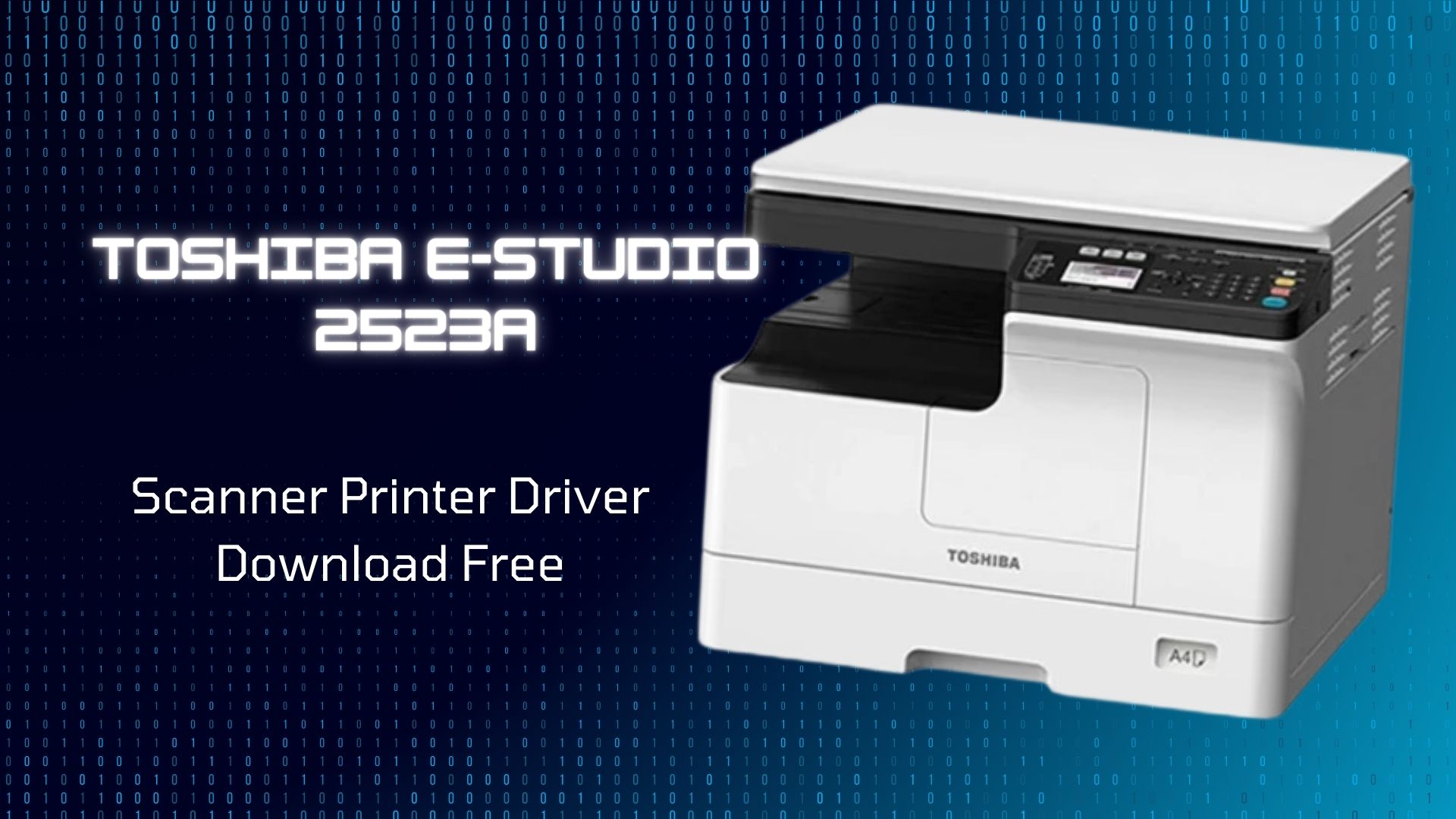
Toshiba e-Studio 2523a Scanner Printer Driver Download Free

Toshiba e-Studio 2523a Scanner Printer Driver Download Free

The Toshiba E Studio 2523A is a monochrome multifunction printer that offers copy, print, and scan capabilities. Here are some key specifications for this model:

  • Copy / Print Speed: 25 pages per minute (ppm)
  • Warm-up Time: Approximately 15 seconds
  • Memory: 256MB
  • Input Paper Capacity: Standard 350 sheets, maximum 600 sheets
  • Available Paper Size: A5-R to A3
  • Duplexing: Optional (standard for e-ST2523AD)
  • Scanner Resolution: Up to 600 dpi
  • Scan to USB/Mobile: Supported
  • Interface: USB2.0 (optional 10/100baseT)
  • PDL: GDI, PCL6 Emulation, PS3 Emulation (optional)
  • Weight: Approximately 25.5 kg (56.2 lbs)

If you’re looking for the Toshiba e-STUDIO 2523A driver, you can download it directly from their official website. Simply click the download button below to access the Google Drive link where you’ll find the necessary files. After downloading, unzip the file using the provided password. If you need further assistance, feel free to ask! 😊

Password: www.sonrf.com.bd2523

The search results indicate that the “Toshiba e-Studio 2523A” is a valid model and often appears alongside “2523AD” due to shared drivers or very similar features. It’s a monochrome MFP with print, scan, and copy functions. Drivers are generally available for recent Windows OS versions from official Toshiba support sites.

Here are relevant tags for your blog post about “Toshiba e-Studio Scanner Printer Driver Download”:

Toshiba e-Studio 2323AMW Multifunction Photocopier Price in Bangladesh