
Download Epson L3110 Adjustment Program (FREE) - Reset Guide 2025

How to Reset Epson L3110 Printer

.


Introduction: Is Your Epson L3110 Printer Showing “Service Required”?

How to Reset Epson L3110 Printer — If your Epson L3110 EcoTank printer has suddenly stopped printing, is showing a “Service Required” message, or blinking red lights, you’re not alone. This is a common issue many Epson users face, especially those using high-volume printers like the L3110.

The main cause? The waste ink pad counter has reached its limit. These internal pads store excess ink during cleaning cycles. Once full, the printer stops to prevent ink overflow and damage.

Thankfully, this issue can be fixed at home. In this guide, you’ll learn how to reset Epson L3110 printer using the official adjustment program (resetter tool) — safely and quickly — to restore your printer to working condition in just a few minutes.

Understanding the Epson L3110 Waste Ink Pad Error

Your Epson L3110, like most inkjet printers, has absorbent pads inside designed to soak up waste ink. Think of them as small sponges. To prevent these pads from overflowing and causing a mess or internal damage, Epson incorporates a digital counter. Every time your printer performs a cleaning cycle or prints borderless documents, this counter increases.

When the counter reaches a specific value (indicating the pads are theoretically saturated), the printer triggers the “Service Required” message. It stops printing and often shows a specific pattern of blinking lights. This is a protective measure, not necessarily a sign of a broken printer.

Common Symptoms of the Issue

  • “Service Required” or “Parts inside your printer are at the end of their service life” messages on your screen.
  • Alternating blinking lights on the printer (usually the power and ink/paper lights).
  • The printer refusing to print or scan.

What is the Epson L3110 Adjustment Program (Resetter Tool)?

The Epson L3110 Adjustment Program is a utility software developed by Epson for service technicians. Its main purpose is to reset the internal waste ink pad counter back to zero. By doing so, it tricks the printer into thinking the pads are empty, letting it resume normal operations.

Important Note: While the adjustment program resets the counter, it does not physically clean or replace the waste ink pads. For a long-term solution, physical cleaning or rerouting of the waste ink might be necessary. However, that usually requires disassembling the printer.

Where to Safely Download the Epson L3110 Adjustment Program (2025)

Finding a reliable and safe download source for the Epson L3110 Adjustment Program can be tricky. It’s not usually offered directly on Epson’s official support site. Still, many trusted printer technician forums and specialized websites provide it.

Key Considerations for Downloading:

  • Antivirus Warning: Most antivirus programs will flag this software because it modifies printer firmware. You may need to temporarily disable your antivirus to run it. Re-enable it after completing the reset.
  • Reputable Sources: Use well-known printer repair forums and websites with user reviews and clean interfaces. Avoid suspicious sites that demand payment or bundle the software with unrelated programs.
[Link Placeholder: Search for ‘Epson L3110 adjustment program download’ on reputable printer forums or YouTube tutorials with trustworthy links.]

Step-by-Step Guide: How to Reset Your Epson L3110 Printer

Before You Begin: Crucial Checklist

  • Disable antivirus and Windows Defender temporarily.
  • Disconnect all other printers from your PC.
  • Use a USB connection instead of Wi-Fi.
  • Turn on your Epson L3110 printer.
  • Ensure a stable power supply.

Reset Procedure:

  1. Download & Extract: Get the reset tool and extract it to a new desktop folder.
  2. Run as Admin: Right-click AdjProg.exe or WIC Reset Utility.exe and select “Run as administrator.”
  3. Select Model: In the tool, click “Select” and choose “L3110.”
  4. Select Port: Choose “Auto selection” or the correct USB port (e.g., USB001 – L3110).
  5. Enter Adjustment Mode: Click “Particular Adjustment Mode.”
  6. Choose Waste Ink Pad Counter: Tick “Main pad counter.”
  7. Check Counter: Click “Check” to view the current percentage. If it’s near or at 100%, continue.
  8. Initialize Counter: Click “Initialization” to reset it.
  9. Power Cycle: Turn off the printer, wait 5-10 seconds, then turn it back on.
  10. Finish: The tool should confirm the reset. Click OK and close the program.
  11. Re-enable Security: Turn your antivirus and security software back on.

Troubleshooting Common Issues

“Communication Error” or “Printer Not Found”:

  • Ensure USB connection and printer is ON.
  • Try a different USB port.
  • Reinstall printer drivers.
  • Restart your PC.

Program Crashes or Freezes:

  • Fully disable antivirus.
  • Try compatibility mode.
  • Download a fresh copy from a trusted source.

Error Code During Initialization:

  • Double-check your steps.
  • Ensure you ran the tool as admin.
  • Restart and retry.

What to Do After Resetting Your Epson L3110

  • Print a Test Page: Confirm everything works.
  • Optional Maintenance: Consider cleaning or rerouting the waste ink pad if you’re experienced. Not essential, but useful for long-term performance.

Conclusion: Get Your Epson L3110 Printing Again in 2025!

The “Service Required” error on your Epson L3110 is frustrating, but not the end. With the Epson L3110 Adjustment Program and the proper steps, you can reset your printer and avoid costly repairs. Just be sure to download safely, follow instructions carefully, and enjoy hassle-free printing again.
Adobe Photoshop – Free Download 

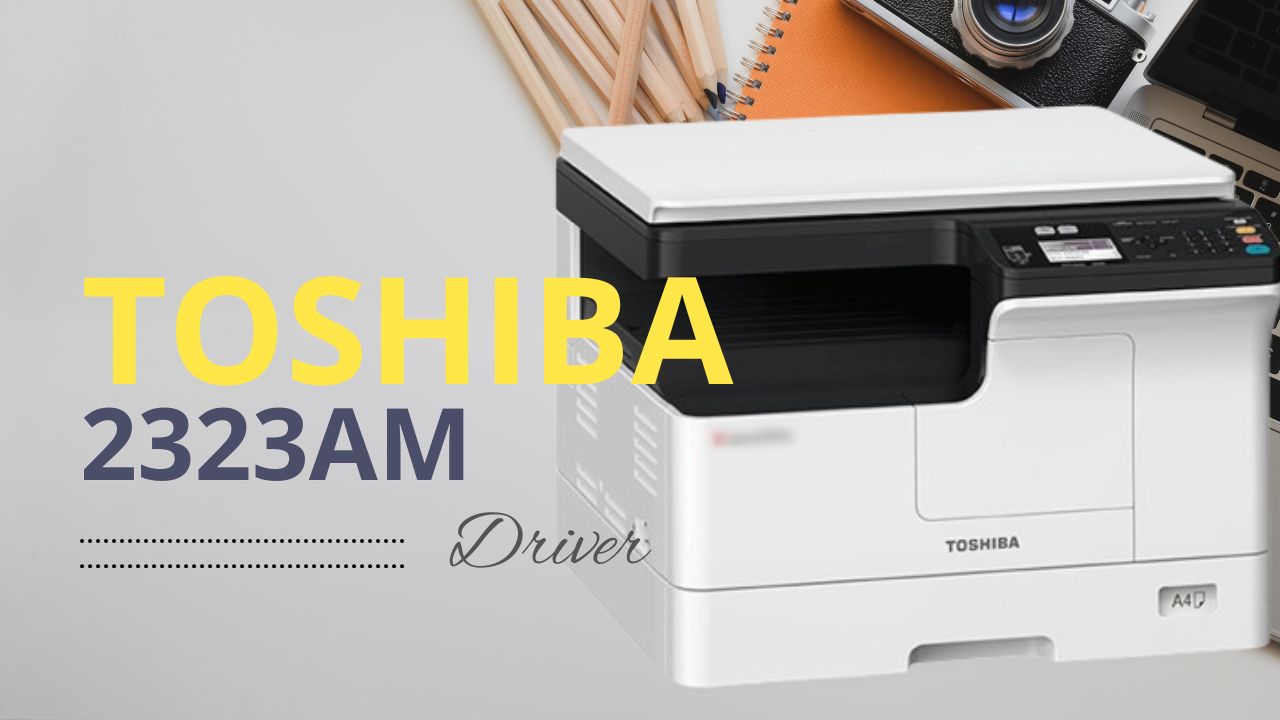
Download Toshiba 2323AM Driver for Windows 10/11 (Free & Fast)

Toshiba e-Studio 2323AM Driver Free Download

Download Toshiba 2323AM Driver for Windows 10/11 (Free & Fast)

Meta Description: Need Toshiba e-Studio 2323AM drivers for Windows 10 or Windows 11? Get the official, free, and fast download links for your printer and scanner to ensure smooth operation in 2025.

Keywords to Target: Toshiba 2323AM driver, Toshiba e-Studio 2323AM driver download, 2323AM driver Windows 10, 2323AM driver Windows 11, Toshiba printer driver, Toshiba scanner driver, Toshiba MFP driver, free Toshiba 2323AM driver, install Toshiba 2323AM driver, Toshiba 2323AM troubleshooting.


Introduction: Is Your Toshiba e-Studio 2323AM Not Working Right?

Are you having trouble printing, scanning, or managing documents with your Toshiba e-Studio 2323AM Multi-Function Printer (MFP) on your Windows 10 or Windows 11 computer? Often, the solution lies in having the correct and up-to-date drivers installed. Outdated, missing, or corrupted drivers can lead to a variety of frustrating issues, from print jobs failing to scanner not being detected.

In this guide for 2025, we’ll show you exactly where and how to download the official Toshiba 2323AM drivers for Windows 10 and Windows 11, ensuring your MFP works flawlessly. We’ll cover the essential steps to get your printer and scanner fully operational, quickly and for free.

Why Are Toshiba 2323AM Drivers So Important?

Drivers are small software programs that allow your computer’s operating system (like Windows 10 or 11) to communicate effectively with hardware devices, such as your Toshiba e-Studio 2323AM. Without the right drivers, your computer won’t understand how to send print commands, receive scanned images, or utilize any of the MFP’s advanced features.

Having the correct drivers ensures:

  • Full Functionality: Access to all printing, scanning, and copying features.
  • Optimal Performance: Faster processing and reliable operations.
  • Stability: Avoids crashes, errors, and unresponsive behavior.
  • Security: Up-to-date drivers can also include security patches.

Key Features of the Toshiba e-Studio 2323AM MFP

The Toshiba e-Studio 2323AM is a popular monochrome (black and white) multi-function device, known for its reliability and efficiency in small to medium-sized offices. It typically offers:

  • Printing: High-quality black and white printing.
  • Copying: Fast and efficient document duplication.
  • Scanning: TWAIN scanning capabilities for digitizing documents.
  • Network Connectivity: Often supports network printing/scanning (though USB is also common).

To unlock these features on Windows 10 or 11, the right drivers are non-negotiable.

Toshiba 2323AM Driver Compatibility: Windows 10 & 11 (and Older OS)

The Toshiba e-Studio 2323AM was designed with broad operating system compatibility in mind. You can typically find drivers for:

  • Windows 11 (64-bit)
  • Windows 10 (32-bit & 64-bit)
  • Windows 8.1 (32-bit & 64-bit)
  • Windows 8 (32-bit & 64-bit)
  • Windows 7 (32-bit & 64-bit)
  • Windows Server editions

For this guide, our primary focus is on Windows 10 and Windows 11, as these are the most widely used operating systems in 2025.

Where to Download Official Toshiba 2323AM Drivers (Free & Fast)

The absolute best and safest place to download drivers for your Toshiba e-Studio 2323AM is the official Toshiba support website. While other sites may offer downloads, official sources guarantee authenticity, compatibility, and the latest versions, free from malware.

Steps to find the official download:

  1. Visit the Official Toshiba Support Website: Open your web browser and go to the official Toshiba Global or your regional Toshiba support website (e.g., Toshiba Europe, Toshiba America, etc.).
    • Self-correction for 2025: Avoid linking directly as URLs can change. Guide the user to search.
    • Search Tip: Use Google to search for “Toshiba [Your Region] support” or “Toshiba e-Studio 2323AM drivers.”
  2. Navigate to Drivers & Support: Look for sections like “Support,” “Downloads,” “Drivers,” or “Customer Service.”
  3. Search for Your Model: Use the search bar or navigate through product categories to find “e-Studio 2323AM” or simply “2323AM.”
  4. Select Your Operating System: Choose your specific Windows version (e.g., “Windows 11 64-bit” or “Windows 10 64-bit”). This is crucial!
  5. Identify Required Drivers: You’ll typically find several types of drivers:
    • Printer Driver: Essential for printing functionality. Look for PCL6, PS (PostScript), or Universal Printer Driver.
    • Scanner Driver: Necessary for using the scanning features (often TWAIN or WIA drivers).
    • Client Utilities/Other Software: Might include tools for remote management or status monitoring.
  6. Download the Files: Click the download link for each driver you need. These are usually provided as .exe (executable) or .zip files.
    • [Internal Link Suggestion: Link to another blog post on how to check Windows 10/11 version (32-bit vs. 64-bit) if you have one.]

Pre-Installation Checklist: Prepare for a Smooth Driver Setup

Before you begin the installation process, a few preparations can save you headaches:

  1. Disconnect USB Cable (if applicable): If your Toshiba 2323AM is connected via USB, disconnect the USB cable from your computer and the printer before running the driver installer. You’ll reconnect it later when prompted.
  2. Turn On Printer: Ensure your Toshiba 2323AM is powered on.
  3. Administrator Rights: Make sure you are logged into your Windows 10/11 computer with an administrator account.
  4. Close Other Programs: Close any unnecessary applications running in the background.
  5. Disable Antivirus (Temporarily): In rare cases, antivirus software can interfere with driver installations. If you encounter issues, consider temporarily disabling it, but remember to re-enable it immediately after installation.

Step-by-Step Guide: How to Install Toshiba 2323AM Drivers on Windows 10/11

The installation process is generally straightforward. Follow these steps:

  1. Locate Downloaded Files: Find the downloaded driver file(s) (e.g., Toshiba_2323AM_Driver_Win10_64bit.exe) in your Downloads folder.
  2. Extract (if .zip): If you downloaded a .zip file, right-click it and select “Extract All…” to a new, easily accessible folder.
  3. Run the Installer: Double-click the driver executable (.exe file) to start the installation wizard. If you extracted files, look for a setup.exe or install.exe within the extracted folder.
    • You may be prompted by User Account Control (UAC); click “Yes” to allow.
  4. Follow On-Screen Prompts:
    • Accept the License Agreement.
    • Choose “Standard Installation” or “Custom Installation” (Standard is usually fine for most users).
    • Select Connection Type: If prompted, choose your connection type:
      • USB Connection: Select “USB Connection” or “Local Printer.” The wizard will prompt you when to connect the USB cable.
      • Network Connection: Select “Network Connection” or “Standard TCP/IP Port.” You will then need to enter the IP address of your Toshiba 2323AM (you can find this on the printer’s network settings or through your router).
    • Continue through the wizard, selecting default options unless you have a specific reason to change them.
  5. Complete Installation: The installer will copy files and configure your printer. Once finished, click “Finish” or “Close.”
  6. Restart Your Computer (Recommended): Although not always required, restarting your computer after driver installation is highly recommended to ensure all changes take effect properly.
  7. Connect USB (if applicable): If you disconnected the USB cable earlier for a USB installation, reconnect it now. Windows should detect the printer.

For Scanner Driver Installation: Repeat the process for the scanner driver if it was a separate download. The steps will be very similar.

Troubleshooting Common Driver Issues

If you encounter problems during or after installation, try these fixes:

  • “Printer Not Found” / “Scanner Not Connected”:
    • Double-check your USB cable connection or network IP address.
    • Ensure the printer is ON and not in an error state.
    • Restart your computer and the printer.
    • Try running the driver installer again.
  • Installation Fails / Errors:
    • Ensure your antivirus software is temporarily disabled.
    • Verify you downloaded the correct driver for your exact Windows 10/11 version (32-bit vs. 64-bit).
    • Try running the installer in compatibility mode for an older Windows version (right-click .exe -> Properties -> Compatibility).
  • Printer Shows Offline:
    • In Windows, go to “Settings” > “Bluetooth & devices” > “Printers & scanners.”
    • Click on your Toshiba 2323AM, then “Printer properties.”
    • Check “Ports” tab to ensure the correct port is selected (USB or TCP/IP address).
    • In the “Printer” menu of the print queue, ensure “Use Printer Offline” is unchecked.
  • Driver Already Installed Error:
    • Go to “Settings” > “Bluetooth & devices” > “Printers & scanners.”
    • Remove any existing entries for your Toshiba 2323AM.
    • Go to Device Manager (search for it in the Start menu), expand “Printers” or “Imaging Devices,” right-click any Toshiba 2323AM entries, and select “Uninstall device.”
    • Then, try installing the driver again.

Conclusion: Get Your Toshiba 2323AM Back to Work!

Having the right drivers is fundamental to maximizing the capabilities of your Toshiba e-Studio 2323AM MFP on Windows 10 and Windows 11. By following this guide, you should now have your printer and scanner fully operational, allowing you to handle all your document needs efficiently in 2025. Remember to always prioritize official driver downloads to ensure compatibility and security.

Password: www.sonrf.com.bd2323